
Qwen-Image-2.1-Turbo: 8-Step Generation and Editing Explained
What Qwen-Image-2.1-Turbo changes, how its saved 8-step schedule works, when to use it, and how to compare quality and speed in your own workflow.
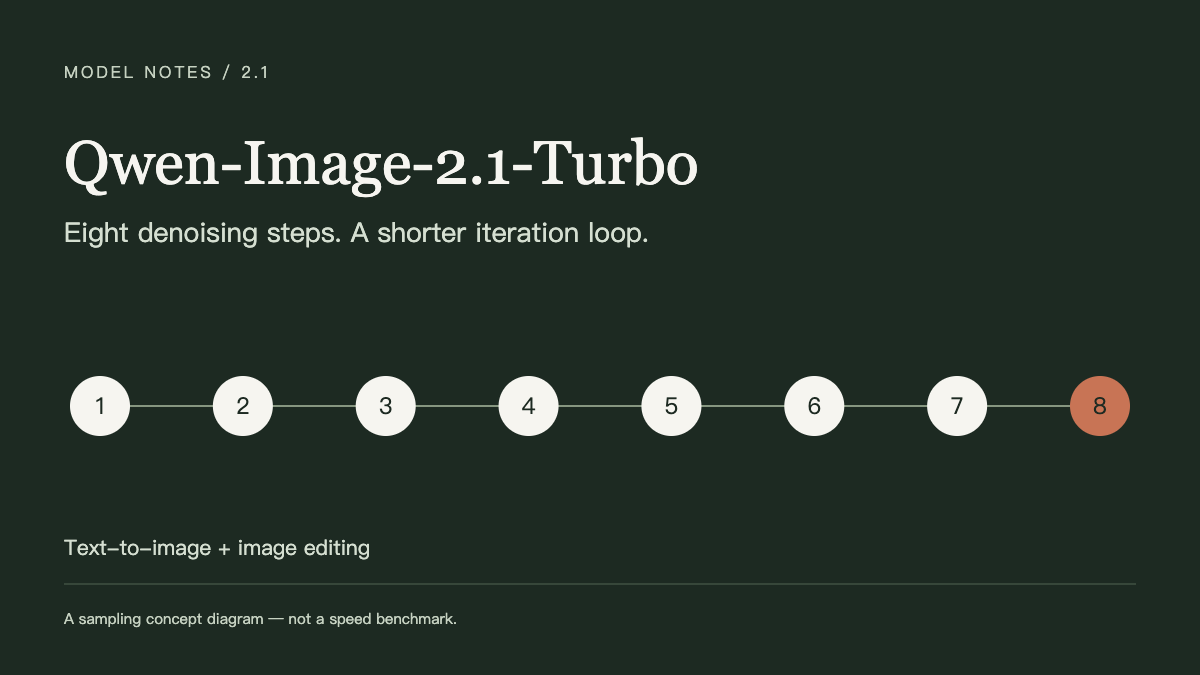
Qwen-Image-2.1-Turbo is the accelerated checkpoint in the Qwen Image 2.1 family. Its main attraction is a shorter generation loop: you can test a composition, inspect the result, and decide what to change next. That makes it worth understanding when your project needs several visual directions before a final image.
This article explains the model's published setup and offers an evaluation workflow. It does not present local GPU measurements or claim that Turbo always matches another checkpoint's quality. The cover is an editorial diagram, not a benchmark.
What is Qwen-Image-2.1-Turbo?
The official model card describes an 8-denoising-step checkpoint for both text-to-image creation and image editing, built on the same 7B visual generation architecture as Qwen-Image-2.1. It loads with QwenImage21Pipeline; its recommended sampling schedule is stored with the checkpoint, and generation defaults to CFG=1. Official Turbo model card.
An accelerated checkpoint is more than a new name for a low-step setting on another model. When setting up a workflow, confirm the actual checkpoint identifier: Qwen/Qwen-Image-2.1-Turbo. A page title or a manually selected step count does not confirm which weights are loaded.
The Qwen Image 2.1 repository records the Turbo release on October 9, 2026, and links the model, examples, and hosted API options. Those are the starting points for current availability, rather than an older tutorial's package versions or provider list.
What changes compared with the standard checkpoint?
Use the standard model and Turbo as separate candidates for your task. The following table is a workflow comparison, not a quality ranking.
| Decision | Qwen-Image-2.1 | Qwen-Image-2.1-Turbo |
|---|---|---|
| Checkpoint | Load the standard model explicitly. | Load the Turbo weights explicitly. |
| Sampling | Use the defaults for the selected standard workflow. | Start with its saved 8-step schedule. |
| A useful evaluation | Assess whether its output meets the final brief. | Assess whether quicker iterations reduce time to an acceptable result. |
| Prompt preparation | Record the final prompt and rewriting settings. | Keep the same prompt policy for a fair comparison. |
| Output review | Inspect the full image and exact copy. | Apply the same inspection criteria. |
A product catalog might prioritize stable silhouettes and correct labels. A campaign mood board might prioritize the number of useful directions you can explore in an afternoon. Decide what success means before choosing the faster-looking option.
Eight steps do not mean a fixed number of seconds
Denoising is one part of a complete request. Loading weights, encoding the prompt and references, allocating memory, decoding the image, and writing the output also take time. A hosted queue adds another variable. Increasing the output dimensions or attaching more references can change the work even when the denoising schedule stays the same.
For a useful comparison, record three timings separately:
- Cold start: loading the model and completing the first request.
- Warm request: completing a request after initialization.
- Time to an accepted result: all attempts, including rejected drafts and manual review.
The third measure is often the most relevant to a creator. Saving a few seconds per image is less helpful if the workflow requires many more attempts. Conversely, a fast preview can be valuable when a small change in framing is all you need to assess.
Getting started without inheriting the wrong settings
In Diffusers
Follow the current model card's dependency instructions and use a Diffusers build that understands the checkpoint's saved sampling configuration. Keep your environment and model revision in your project notes, especially if you compare results later.
There is one unusual detail worth checking: changing num_inference_steps alone does not replace Turbo's saved schedule. The model card says an explicit sigmas argument can override it, and other schedules have not been evaluated for this checkpoint. Start with the shipped configuration before experimenting. Sampling documentation.
This is also why a copied configuration from an older Qwen workflow can be misleading. A control may appear to accept a different number while the loaded pipeline follows its saved schedule. Inspect the configuration your runner actually uses.
In ComfyUI
The official Comfy documentation provides dedicated Turbo templates for generation and editing. Begin with the matching template, update the application if required nodes are missing, and verify that the model loader selects Turbo. ComfyUI's Qwen Image 2.1 workflows.
Keep a working copy of the original workflow before adding custom nodes or changing sampling controls. When several extensions change at once, it becomes harder to tell whether an unexpected output comes from the model, the prompt, or the surrounding graph.
Through a hosted service
Check the exact model name, supported operations, output limits, and charging unit. A service may expose fewer reference slots or different controls than a local pipeline. Compare the total cost of accepted images, rather than assuming that every service passes a lower denoising cost through to the user.
A practical Turbo prompting workflow
Use a small brief that can be judged at a glance. For a product concept, try:
One unbranded ivory ceramic cup on a pale stone shelf, viewed at eye level. The cup sits left of center with clear empty space on the right. Soft daylight enters from the left. Natural glaze texture, restrained warm colors, a quiet studio wall, no lettering or additional props.
Then make one purposeful variation: closer framing, a cooler background, or a different light direction. Keep the other decisions fixed. If you need a more complex scene, add relationships before adding decorative adjectives.
For an edit, start with the operation:
Replace only the background wall with a muted olive wall. Keep the uploaded product and its placement unchanged. Match the existing photographic style and preserve the direction of the light. Add no text.
Use the Qwen 2.1 prompt guide for more templates, including text layouts and reference roles. Faster generation makes unclear instructions arrive sooner; it does not decide which parts of your brief matter.
When Turbo is a useful candidate
Consider evaluating it for early product concepts, campaign directions, storyboard frames, and repeated composition tests. The common feature is a short feedback loop: you know what to inspect and can decide the next change quickly.
For a final asset, review the details that affect its real destination. Check small text at its display size, object counts in repeated patterns, product markings, hands, and edges. If a particular requirement keeps failing, compare the standard checkpoint or another workflow using the same acceptance criteria. Do not assume either candidate wins every category.
FAQ
Can Qwen-Image-2.1-Turbo edit images?
Yes. Editing is included in the published model scope, and ComfyUI provides an edit template. Choose an interface that exposes reference inputs and explain what each reference supplies.
Does Turbo guarantee the same quality as the standard model?
This article makes no such claim. Build a small set of representative briefs and compare the details that matter to your work, including unsuccessful attempts. A pleasing showcase image does not replace that evaluation.
How much VRAM do I need?
There is no single number established here. The visual generator's parameter count is not the full runtime memory requirement. Precision, text encoding, output size, reference images, and offloading choices affect memory use. Consult your runner's current requirements.
Is it unrestricted for commercial use?
Do not infer unrestricted use from downloadable weights. The model card identifies the Qwen Research License Agreement; review the linked terms and the conditions of any hosted service for your intended use. Model license section.
Does this site's generator run Turbo?
The current online generator uses Qwen Image 3, not Qwen-Image-2.1-Turbo. You can adapt the same visual briefs there, but use a deployment that explicitly selects Turbo when you want to test this checkpoint.
Start your evaluation with one representative image task and a clear acceptance checklist. That makes it possible to decide whether Turbo improves your actual creative process, beyond the step count in its name.